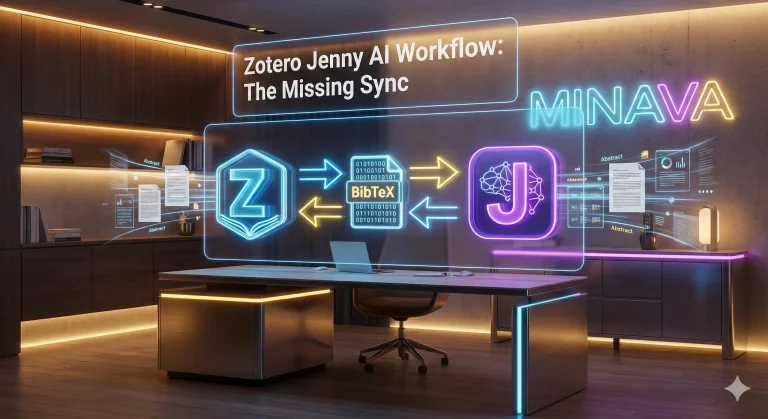
Welcome to Minava! If you are deep in the trenches of academic writing, you know that the blank page syndrome is real. We have all been there—staring at a blinking cursor, drowning in PDFs, and wondering how to organize a literature review without losing our minds. This is where technology steps in to save the day. Specifically, we are talking about a powerful Zotero Jenny AI workflow that can revolutionize how you research and write.
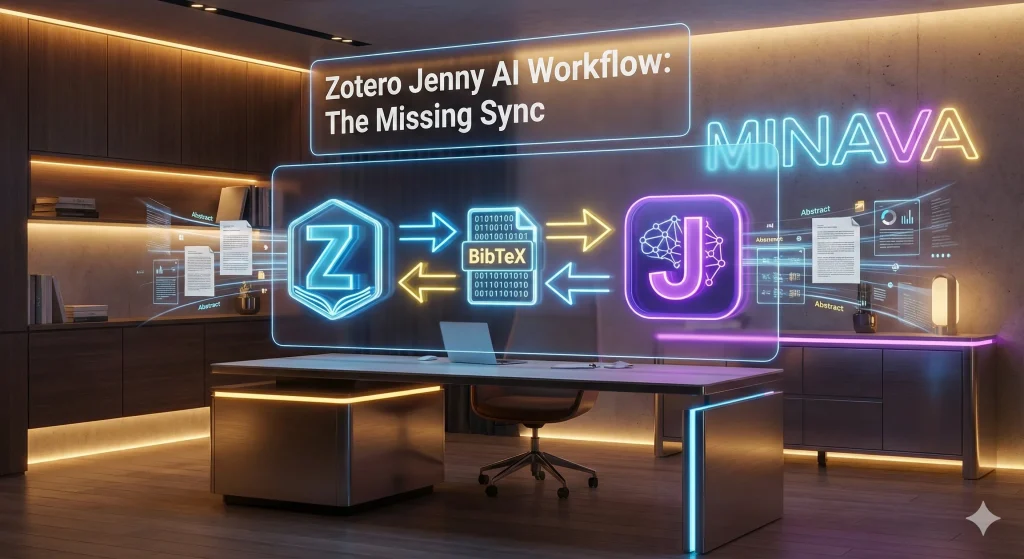
In the world of academic tools, two giants often stand apart. On one side, you have Zotero, the undisputed king of free reference management. On the other, there is Jenny AI, a cutting-edge writing assistant that helps you draft, paraphrase, and chat with your documents. But here is the catch: they don’t have a direct “sync” button. Does that mean you can’t use them together? Absolutely not. In this guide, we are going to master the Zotero Jenny AI workflow to bridge the gap between these two incredible tools.
Why You Need a Solid Zotero Jenny AI Workflow
Before we dive into the “how-to,” let’s talk about the “why.” Writing a PhD thesis or a research paper involves two distinct phases: gathering information and synthesizing it. Zotero handles the gathering perfectly. It captures metadata, stores PDFs, and organizes your library. However, Zotero doesn’t write for you. That is where Jenny AI shines.
Jenny AI isn’t just a spellchecker; it is like having a knowledgeable colleague sitting next to you 24/7. It can generate outlines, suggest references, and even translate concepts. By establishing a robust Zotero Jenny AI workflow, you get the best of both worlds: the organizational power of a traditional reference manager and the generative capabilities of modern AI. But, since there is no automatic integration, we have to be smart about how we move data between them.
Throughout this article, we will explore how to use Zotero with Jenny AI effectively, ensuring your citations are accurate and your writing flow remains uninterrupted.
Understanding the Tools in Your Arsenal
To fully appreciate this Zotero Jenny AI workflow, let’s briefly look at what each tool brings to the table.
1. Zotero: The Foundation
Zotero is likely the most popular reference manager next to Mendeley. It allows you to store and manage references, automatically format citations in Word, and organize massive libraries of research. It is free, open-source, and reliable.
2. Jenny AI: The Accelerator
Jenny AI is the new kid on the block. It helps structure your text and allows you to chat with PDF documents. Features include:
- AI Chat: Ask questions about your uploaded documents.
- Paraphrasing: Rewrite complex academic jargon into readable text.
- Reference Suggestions: Jenny scans databases like Google Scholar to suggest relevant sources.
- Readability Improvements: Enhances the flow and fluency of your writing.
The challenge we face is integrating these two. Unlike the seamless Zotero extension for Chrome, there is no one-click solution here. However, with a little manual work, the Zotero Jenny AI integration becomes a powerhouse for productivity.
Phase 1: From Jenny AI to Zotero
Let’s imagine you have started your writing process in Jenny AI. You are using the AI to generate ideas, and Jenny has suggested some fantastic references from its internal search of Scopus or Google Scholar. You have a draft, but now you need those references inside your main Zotero library for long-term storage and formatting in Word later. This is the first half of our Zotero Jenny AI workflow.
Step-by-Step Export Guide
- Finalize Your References in Jenny: Ensure that you have added the necessary citations to your Jenny AI document. These might be sources the AI discovered for you.
- Access the Bibliography: Go to the references section of your Jenny interface.
- Copy as BibTeX: This is crucial. Do not just copy to the clipboard as text. Look for the option that says “Copy as BibTeX.” BibTeX is a standard format that reference managers understand perfectly.
- Open Zotero: Switch over to your Zotero application.
Importing into Zotero

Now that you have the data on your clipboard, how do we get it into Zotero without making a mess? As part of a clean Zotero Jenny AI workflow, organization is key.
- Create a New Collection: I highly recommend creating a specific folder (Collection) in Zotero named “Jenny Imports” or the name of your specific paper. This keeps things tidy.
- Import from Clipboard: Go to File > Import from Clipboard.
- Verification: You will see a message stating “X items were imported.” Check the folder to ensure the title, author, and date are correct.
By following this method, any new literature you discover while brainstorming in Jenny AI becomes a permanent part of your Zotero library. This seamless transition is vital for how to use Zotero with Jenny AI effectively.
For more insights on optimizing your research stack, check out our guide on best Zotero integrations.
Phase 2: From Zotero to Jenny AI
Now, let’s flip the script. This is probably the more common scenario for PhD students. You have been collecting references in Zotero for months. You have folders full of PDFs. Now, you want to use Jenny AI to help you write the literature review based on those specific papers. You want to “chat” with your PDFs. This is where the Zotero Jenny AI workflow gets really exciting.
Exporting Your Library
You have two choices here: export your entire library (not recommended if it’s huge) or export a specific collection relevant to the paper you are writing.
- Select Your Collection: In Zotero, right-click on the collection (folder) you want to move to Jenny.
- Export Format: Select “Export Collection.” A dialog box will appear.
- Choose BibTeX: From the format dropdown menu, select BibTeX. This is the universal language for our Zotero Jenny AI integration.
- The “Export Files” Decision:
- Option A (With PDFs): Check the “Export Files” box. Do this if you want to use Jenny AI’s “Chat with Document” feature. Jenny needs the actual PDF file to read and answer your questions.
- Option B (Citations Only): Uncheck “Export Files” if you only need the citation metadata for referencing and don’t need the AI to read the full text.
- Save the File: Save the `.bib` file to a known location on your computer (e.g., Desktop/MyPaper_Refs).
Importing into Jenny AI
Now, head back to Jenny AI to complete this part of the Zotero Jenny AI workflow.
- Open the Library: Click on the Library icon in Jenny AI.
- Add New References: Click the “Plus” (+) sign or “Add” button.
- Select Import via BibTeX: Choose the option to upload a BibTeX file.
- Upload: Select the file you just exported from Zotero.
Pro Tip: Sometimes, the upload window in Jenny AI might not close automatically even after a successful upload (a minor UI glitch). If it seems stuck, close the window manually and check your library. You will likely see your Zotero references, and if you selected “Export Files,” your PDFs will be there, ready for analysis.
This capability allows you to ask Jenny questions like, “What is the author’s main argument in this paper?” or “Summarize the methodology.” This interaction is a game-changer for literature reviews. If you are interested in more tools like this, read our article on AI tools for literature review.
Handling the Duplicate Nightmare
Here is a reality check. When you use a two-way Zotero Jenny AI workflow—moving references back and forth—you are going to end up with duplicates. You might import a paper from Jenny that you already had in Zotero from a year ago. Duplicate references are the enemy of a clean bibliography.
Don’t panic! Zotero has a built-in feature to handle this, which is a crucial step in our workflow.
How to Clean Up Duplicates
- Go to “Duplicate Items”: In the left-hand pane of Zotero, near the bottom of your library list, click on Duplicate Items.
- Review the Conflicts: Zotero will show you items that look identical. When you click on a pair, it allows you to compare their metadata (Date, Edition, Publisher).
- Choose the Master: Look at the timestamps. Usually, the version with the most recent information or the one attached to the PDF is the one you want to keep as the “Master.”
- Merge, Don’t Delete: This is the golden rule of the Zotero Jenny AI workflow. Click the button that says “Merge 2 items”. Do not simply delete one, as you might lose valuable notes or links attached to that specific entry. Merging combines the best data from both.
Regularly performing this cleanup ensures that your Zotero Jenny AI integration remains efficient and your citation list in Word stays accurate.
Why Manual Syncing is Worth the Effort

You might be asking, “Why go through all this trouble? Why isn’t there a button?” While we all hope for a direct API integration in the future, the manual Zotero Jenny AI workflow takes less than two minutes once you get the hang of it. The benefits far outweigh the minor inconvenience.
By combining these tools, you overcome the “Blank Page Syndrome.” You can start writing in Jenny AI, prompt it to expand on a bullet point, paraphrase a difficult abstract, or translate a concept from your native language to English. Then, you seamlessly back up your sources to Zotero, ensuring academic rigor.
| Feature | Zotero | Jenny AI |
|---|---|---|
| Primary Function | Reference Management | AI Writing Assistant |
| PDF Interaction | Storage & Annotation | Chat & Summarization |
| Citation Style | Extensive (APA, MLA, Chicago, etc.) | Basic Support |
| Content Generation | None | High (Outlines, Paraphrasing) |
If you are looking to further enhance your workflow with AI, don’t miss our detailed breakdown on AI for Zotero workflow optimization.
Advanced Tips for the Zotero Jenny AI Workflow
To truly master how to use Zotero with Jenny AI, consider these advanced strategies:
1. Use Tags Effectively
When you import references from Jenny back into Zotero, tag them immediately with “Jenny Import.” This allows you to easily filter and see which sources came from your AI writing sessions versus your manual searches.
2. Chat with Multiple PDFs
In Jenny AI, once you have imported your Zotero BibTeX file with PDFs attached, you can select multiple documents in your library. This allows the AI to synthesize information across several papers, helping you find connections between opposing viewpoints—a critical skill for a high-scoring literature review.
3. Paraphrasing for Plagiarism Avoidance
One of the strongest parts of the Zotero Jenny AI workflow is the paraphrase tool. If you find a great quote in a PDF stored in Zotero, copy it into Jenny and ask it to paraphrase. This helps you integrate the idea into your voice while maintaining the citation, reducing the risk of accidental plagiarism.
Conclusion: Mastering the Sync
Integrating these two powerful tools might require a few extra clicks, but the payoff is massive. A solid Zotero Jenny AI workflow empowers you to write faster, research deeper, and organize better. You get the creative spark and analytical speed of Jenny AI, backed by the robust, long-term storage and formatting capabilities of Zotero.
Remember, technology is there to serve you, not the other way around. By mastering the export and import of BibTeX files and keeping an eye on duplicates, you create a seamless bridge that makes writing your thesis or paper significantly less stressful.
Have you tried this Zotero Jenny AI workflow yet? Did you encounter any other tricks to make the process smoother? We would love to hear from you! Please leave a comment below sharing your experience, and don’t forget to share this article with your fellow researchers who might be struggling with their literature reviews.
Be sure to explore more articles on Minava to stay ahead in the world of academic technology.
Frequently Asked Questions (FAQ)
1. Is the Zotero Jenny AI workflow free to use?
Zotero is completely free. Jenny AI offers a free version with limited capabilities, but to fully utilize the “Chat with PDF” and unlimited generation features needed for a heavy Zotero Jenny AI workflow, you may need a paid subscription. However, the basic integration steps work with the free versions.
2. Can Jenny AI automatically update my Zotero library?
Currently, there is no automatic, real-time sync or plugin that connects the two. You must manually export a BibTeX file from one and import it into the other. This manual Zotero Jenny AI integration is simple but requires user action.
3. Do I need to export the actual PDF files from Zotero to Jenny AI?
If you want to use Jenny AI’s feature to chat with your documents and ask questions about the text, yes, you must select “Export Files” when creating your BibTeX export in Zotero. If you only need the citation data for the bibliography, you do not need the PDFs.
4. Will importing from Jenny AI create duplicates in Zotero?
It is very likely, especially if you are citing common foundational texts. However, Zotero’s “Duplicate Items” feature makes it easy to merge these entries. Managing duplicates is a standard part of the Zotero Jenny AI workflow.
5. Can I use this workflow for referencing styles like APA or Harvard?
Yes. Jenny AI supports basic citation generation, but Zotero is the master of formatting. By moving your references into Zotero using this workflow, you can use the Zotero Word Plugin to format your citations in thousands of different styles, including APA, MLA, Chicago, and Harvard, with perfect accuracy.